내용이 길어 읽기 귀찮고 빠른 시작을 원한다면 아래 퀵스타트 블로그를 참고해보자.
https://deahan.tistory.com/484
[Electron] 일렉트론 퀵스타트
https://deahan.tistory.com/483 [Electron] 일렉트론 데스크탑 어플리케이션 만들기 기초 및 셋팅1. Electron이란?HTML, CSS, Javascript를 사용해 desktop application을 만들기 위한 프레임 워크임Chromium과 Node.js를 single
deahan.tistory.com
1. Electron이란?
HTML, CSS, Javascript를 사용해 desktop application을 만들기 위한 프레임 워크임
Chromium과 Node.js를 single binary file에 추가하여, Electron은 Javascript 코드 베이스로 Windows. macOS, Linux에서 동작하는 cross-platform-apps를 만들 수 있게 해줌
이런 정의를 가진 Electron은 Javascript뿐만 아니라 React, Nextjs와도 함께 사용할 수 있고 Next와 Electon을 더 유연하게 같이 사용할 수 있는 도구로 Nextron이 존재하는데, 나는 react, next.js를 잘 모르기에 javascript(기본으로) 사용할것이다.
Electron의 동작방식은 메인(main)프로세스와 렌더러(renderer)프로세스, 두가지 프로세스가 존재함
일렉트론 앱은 단 하나의 메인 프로세스를 가지고, 메인 프로세스는 Node.js 기반으로 동작하며 메인 프로세스에서는 렌더러 프로세스들을 관리하고 각각의 렌더러 프로세스는 서로 독립적으로 동작함
메인 프로세스와 렌더러 프로세스 간에 통신이 이루어질때는, ipcMain과 ipcRenderer와 같은 IPC 모듈을 통해 프로세스 간의 통신을 이룸
시작하기전에 자신의 컴퓨터에 node.js가 설치되어 있는가? 없다면 아래 URL로 들어가 node부터 설치하고 오자.
https://deahan.tistory.com/413
[React] 272샘의 React1 (Node.Js설치)
https://nodejs.org/en Node.js — Run JavaScript EverywhereNode.js® is a JavaScript runtime built on Chrome's V8 JavaScript engine.nodejs.orgNode.js 홈페이지 에서 다운받을 수 있지만 그렇게 하지 않을 것이다이유는 node는 버전
deahan.tistory.com
2. main.js 파일의 역할
프로젝트의 루트 폴더에 main.js라는 파일을 만들어보자
#의존성, 실행스크립트, 빌드 설정 관리
npm init -y
#Electron 설치
npm install electron --save-dev
#main.js 파일 생성
mkdir main.js
electron을 설치한 후, package.json에서 "main":"main.js"라는 코드를 넣어줄것이다. 이것은 main.js는 모든 Electron 어플리케이션의 entry point라는것을 나타낸다.
이 스크립트는 Node.js 환경에서 실행되는 main process를 제어하며 앱의 lifecycle 제어, 기본 인터페이스 표시, 권한이 있는 작업 수행 및 render processes 관리한다.
main.js에 아래 코드를 넣어보자
//main.js
console.log("Hello, Electron! and Minux");
일렉트론의 main process는 Node.js runtime이므로 electron 명령으로 임의의 Node.js 코드를 실행할 수 있다.
electron을 실행시킨 후, 터미널에 Hello from Electron이 출력 됐다면, main process entry point가 올바르게 구성되었다고 볼 수 있다.
#npx:로컬에 설치된 electron 실행
#electron : Electron 실행기
#. : 현재 폴더의 pakage.json -> main 파일 실행
#명령어
npx electron .
Electron에서 each window는 local HTML 파일 또는 remote 웹 주소에서 로드할 수 있는 웹 페이지를 표시함
프로젝트에 index.html 파일을 만들고 main.js 파일의 내용을 아래처럼 바꿔보자
<!--index.html -->
<!DOCTYPE html>
<html>
<head>
    <meta charset="UTF-8">
    <title>Electron Application</title>
</head>
<body>
    <h1>Hello Minux</h1>
</body>
</html>
// main.js
const { app, BrowserWindow } = require('electron');

const createWindow = () => {
	const win = new BrowserWindow({
    	width : 800,
        height : 500,
    })

    win.loadFile('index.html');
}

app.whenReady().then(() => {
	createWindow()
})
첫번째 줄은 CommonJS 모듈 구문을 사용해 두 개의 Electron 모듈을 가져온다
app : application의 lifecycle를 제어
BrowserWindow : app windows를 생성하고 관리
ECMAScript 모듈(import구문)은 현재 Electron에서 직접 지원되지 않음
위 코드에서 만든 createWindow() 함수는 웹 페이지를 새 BrowserWindow 인스턴스로 로드한다. BrowserWindows는 앱 모듈의 ready 이벤트가 발생한! 후에만 생성할 수 있다.
이제, electron을 실행하면 웹 페이지를 표시하는 창이 성공적으로 열 수 있다.
앱이 창에 표시하는 각 웹페이지는 renderer process라는 별도의 프로세스에서 실행된다.
✔️이때, renderer process는 일반적인 프론트엔드 웹 개발에 사용하는 것과 동일한 JavaScript api 및 도구에 액세스 할 수 있다.
#Electron 실행명령어
npx electron .
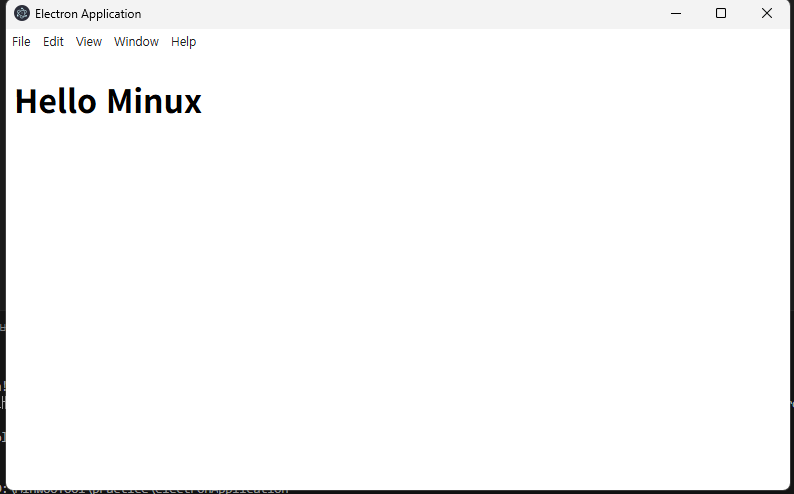
2-1 main.js에서 앱 창의 수명주기 관리
application windows는 운영체제 마다 다르게 작동한다.
기본적으로 이러한 규칙을 적용하는 대신 일렉트론은 사용자가 이를 따르고자 할 경우 앱코드에서 이를 구현할 수 있는 선택권을 제공한다.
앱 및, BrowserWindow 모듈에서 발생하는 이벤트를 수신하여 기본 창 규칙을 구현할 수 있다.
Electron을 실행할 수 있는 플랫폼 종류
 - win32(Windows)
 - linux(Linux)
 - darwin(macOS)
window 및 linux에서 모든 창을 닫으면 일반적으로 응용 프로그램이 완전히 종료된다.
지금 내가 만드는 일렉트론 앱에서 이 패턴을 구현하려면 main.js에서 window-all-closed 이벤트를 수신하고 app.quit()를 호출해 사용자가 앱을 사용하지 않는 경우 종료한다.
app.on('window-all-closed', () => {
	if (process.platform !== 'darwin') app.quit()
})
위의 코드를 main.js에 입력하면 앱을 닫았을 때 프로그램이 종료되는 것을 볼 수 있다.
✔️ 반대로 macOS 앱은 일반적으로 창이 열리지 않아도 계속 실행된다. 사용 가능한 창이 없을 때 앱을 활성화 하면 새 창이 열린다.
이 기능을 구현하려면 앱 모듈의 활성화 이벤트를 수신하고 열려 있는 BrowserWindows가 없는 경우 기존 createWindow() 메서드를 호출한다.
app.whenReady().then(() => {
	createWindow()

    app.on('activate', () => {
    	if (BrowserWinodw.getAllWindows().length === 0) createWindow()
    })
})
위 코드를 main.js에 추가하면 이제 사용 가능한 창이 없을 때, 앱을 활성화 하면 새 창이 열리는 것을 알 수 있다.
2-1의 내용들을 바탕으로 기본적인 main.js의 구성을 보자면, 아래와 같다.
const { app, BrowserWindow } = require('electron')

const createWindow = () => {
	const win = new BrowserWindow({
    	width : 800,
        height : 600
    })

    win.loadFile('index.html')
}

app.whenReady().then(() => {
	createWindow()

    app.on('activate', () => {
    	if (BrowserWinodw.getAllWindows().length === 0) {
        	createWindow()
        }
    })
})

app.on('window-all-closed', () => {
	if (process.platform !== 'darwin') {
    	app.quit()
    }
})
3.PreloadScript 사용하기
preload script란?
일렉트론의 메인 프로세스는 전체 운영체제 접근 권한이 있는 Node.js 환경이다. 일렉트론 모듈 외에도 Node.js 내장 및 npm을 통해 설치된 모든 패키지에 엑세스 할 수 있다.
반면, 렌더러 프로세스는 웹 페이지를 실행하고 보안상의 이유로 기본적으로 Node.js를 실행하지 않는다.
그래서 일렉트론의 서로 다른 프로세스(메인, 렌더러) 유형을 함께 연결하려면 preload라는 특수 스크립트를 사용해야 한다.
✔️즉, Node.js를 렌더러에서 직접적으로 사용할 수 없기 때문에 preload를 통해 받아와 사용하는 것이라 볼 수 있다.
preload scripts는 웹페이지가 renderer에 load 되기 전에 주입된다.
이 때, 렌더러에 필요한 기능을 추가하려면 preload에서 contextBridge api를 통해 global objects를 정의할 수 있다.
preload.js 파일을 루트 폴더에 생성 후, 아래처럼 Chrome, Node 및 Electron 버전을 renderer에 노출하는 코드를 작성해보자
// preload.js
const { contextBridge } = require('electron')

contextBridge.exposeInMainWorld('versions', {
	node : () => process.versions.node,
    chrome : () => process.versions.chrome,
    electron : () => process.versions.electron,
})
preload 스크립트를 renderer process에 연결하기 위해선 main.js의 BrowserWInodw 생성자의 webPreferences.preload 옵션에 전달해야 한다.
// main.js
const { app, BrowserWindow } = require('electron')
const path = require('path');

const createWindow = () => {
	const win = new BrowserWindow({
    	width : 800,
        height : 600,
        webPreferences : {
        	preload : path.join(__dirname, 'preload.js'),
        },
    })
   	win.loadFile('index.html')
}

app.whenReady().then(() => {
	createWindow()
})

// __dirname : 현재 실행 중인 스크립트의 경로를 가리킨다
// path.join : 여러 경로를 결합해 결합된 경로 문자열을 생성한다
이제 renderer.js라는 파일을 만들어 버전 정보를 가져올 수 있다!!
// renderer.js
const information = document.getElementById('info')
information.innerText = `This app is using Chrome (v${versions.chrome()}), Node.js (v${versions.node()}), and Electron (v${versions.electron()})`
이제, index.html에 renderer 스크립트를 넣으면 앱 실행시 버전 정보가 나오는 것을 확인할 수 있다.
<!-- index.html -->
<!DOCTYPE html>
<html>
<head>
    <meta charset="UTF-8">
    <title>Electron Application</title>
</head>
<body>
    <h1>Hello Minux</h1>
    <div id="info"></div>
    <script src="renderer.js"></script>
</body>
</html>
#Electron 실행 명령어
npx electron .
4. 프로세스 간 통신
위에서 말한 바와 같이, 일렉트론의 메인 프로세스와 렌더러 프로세스는 서로 다른 역할을 하며, 상호 교환할 수 없다.
한번 더 정리하자면 renderer process에서 직접 node.js api에 액세스하거나 main process에서 HTML DOM에 액세스할 수 없다.
✔️이 문제에 대한 해결책은 프로세스 간 통신(IPC)를 위해 일렉트론의 ipcMin 및 ipcRenderer 모듈을 사용하는 것이다.
웹 페이지에서 main process로 메시지를 보내려면 ipcMain.handle을 사용해 main process handler를 설정한 다음 ipcRenderer.invoke를 호출하는 함수를 실행하여 preload script에서 handler를 trigger 할 수 있다.
✔️나 같은 경우 handler로 함수를 등록하고 이를 preload에서 호출한다고 이해하였다.
아래와 같이 renderer, preload, main 스크립트를 수정해보자
// renderer.js
const information = document.getElementById('info')
information.innerText = `This app is using Chrome (v${versions.chrome()}), Node.js (v${versions.node()}), and Electron (v${versions.electron()})`

const func = async () => {
	const response = await window.versions.ping()
    console.log("현재 상태는? ->", response) // prints out '현재 상태는? -> 실행!'
}
func();

// preload.js
const { contextBridge, ipcRenderer } = require('electron')

contextBridge.exposeInMainWorld('versions', {
	node : () => process.versions.node,
    chrome : () => process.versions.chrome,
    ping : () => ipcRenderer.invoke('실행'),
    electron : () => process.versions.electron,
})

// main.js
const { app, BrowserWindow, ipcMain } = require('electron')
const path = require('path');

const createWindow = () => {
	const win = new BrowserWindow({
    	width : 800,
        height : 600,
        webPreferences : {
        	preload : path.join(__dirname, 'preload.js'),
        },
    })
	ipcMain.handle('실행', () => '실행!')
   	win.loadFile('index.html')
    win.webContents.openDevTools() //개발자 도구 열기
}

app.whenReady().then(() => {
	createWindow()
})
main에서 '실행'이라는 채널로 함수를 등록하고, preload에서 '실행'이라는 채널을 호출하고 다. 그리고 이를 renderer 스크립트에서 불러와 사용하는 것을 볼 수 있다.
-> 이렇게 렌더러에서 node.js api를 직접 구현하는 것이 아닌, preload를 통해 메인과 렌더러가 통신하는 방법을 알 수 있다.
//electron 실행
npx electron .
5. context-isolated process
electron의 서로 다른 프로세스의 통신 방법을 완벽히 파악하기 위해선, preload script를 사용해 Node.js를 import 해오는 것과 context-isolated renderer process에서 electron 모듈을 가져오는 것을 이해해야 한다.
1) Renderer to main example
renderer process에서 main process로 단방향 IPC 메시지를 실행하려면 ipcRenderer.send API를 사용해 메시지를 보낸 다음 ipcMain.on api에서 수신할 수 있다.
아래 코드는 단방향 통신의 예시이다
// renderer.js
const setButton = document.getElementById('btn')
const titleInput = document.getElementById('title')
setButton.addEventListener('click', () => {
    const title = titleInput.value
    window.electronAPI.setTitle(title)
});

// preload.js
const { contextBridge, ipcRenderer } = require('electron')

contextBridge.exposeInMainWorld('electronAPI', {
	setTitle : title => ipcRenderer.send('set-title', title),
})

const { app, BrowserWindow, ipcMain } = require("electron")
const path = require("path")

function createWindow() {
  const mainWindow = new BrowserWindow({
    webPreferences: {
      preload: path.join(__dirname, "preload.js"),
    },
  })

  ipcMain.on("set-title", (event, title) => {
    const webContents = event.sender
    const win = BrowserWindow.fromWebContents(webContents)
    win.setTitle(title)
  })

  mainWindow.loadFile("index.html")
  mainWindow.webContents.openDevTools()
}

app.whenReady().then(() => {
  createWindow()

  app.on("activate", function () {
    if (BrowserWindow.getAllWindows().length === 0) createWindow()
  })
})

app.on("window-all-closed", function () {
  if (process.platform !== "darwin") app.quit()
})

//index.html
<!DOCTYPE html>
<html>
<head>
    <meta charset="UTF-8">
    <title>Electron Application</title>
</head>
<body>
    <h1>Hello Minux</h1>
    <div id="info"></div>
    <input type="text" id="title" value="Hello Minux">
    <button type="button" id="btn">Set Title</button>
    <script src="renderer.js"></script>
</body>
</html>
electron을 실행시켜 확인해본다.
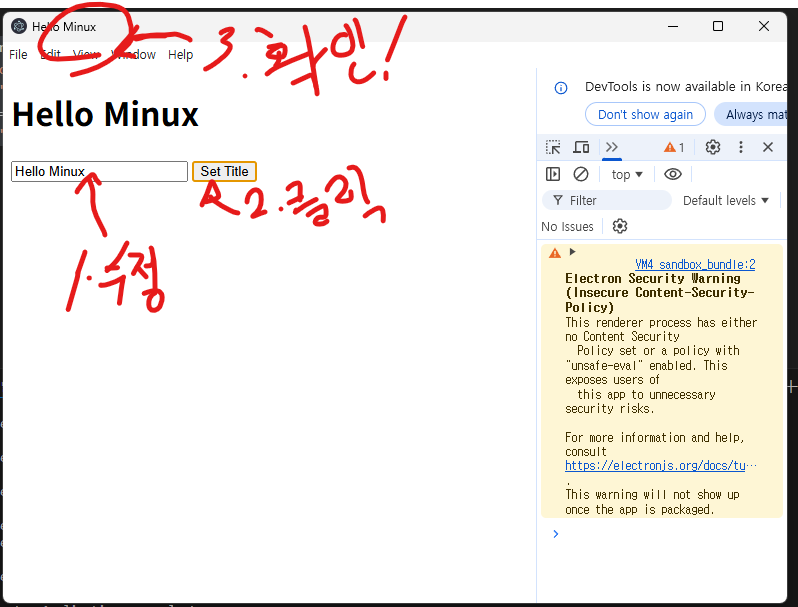
2) Renderer to main example
양방향 IPC의 일반적인 애플리케이션은 renderer process 코드에서 main process 모듈을 호출하고 결과를 기다리는 것이다.
이것은 ipcMain.handle과 쌍을 이루는 ipcRenderer.invoke를 사용해 수행할 수 있다.
아래 코드는 양방향 통신의 예시이다.
<!-- index.html -->
<!DOCTYPE html>
<html>
  <head>
    <meta charset="UTF-8" />
    <meta
      http-equiv="Content-Security-Policy"
      content="default-src 'self'; script-src 'self'"
    />
    <title>Hello Minux</title>
  </head>
  <body>
    <button type="button" id="btn">Open a File</button>
    File path: <strong id="filePath"></strong>
    <script src="./renderer.js"></script>
  </body>
</html>

// renderer.js
const btn = document.getElementById("btn")
const filePathElement = document.getElementById("filePath")

btn.addEventListener("click", async () => {
  const filePath = await window.electronAPI.openFile()
  filePathElement.innerText = filePath
})

// preload.js
const { contextBridge, ipcRenderer } = require("electron")

contextBridge.exposeInMainWorld("electronAPI", {
  openFile: () => ipcRenderer.invoke("dialog:openFile"),
})

// main.js
const { app, BrowserWindow, ipcMain, dialog } = require("electron")
const path = require("path")

async function handleFileOpen() {
  const { canceled, filePaths } = await dialog.showOpenDialog()
  if (canceled) {
    return
  } else {
    return filePaths[0]
  }
}

function createWindow() {
  const mainWindow = new BrowserWindow({
    webPreferences: {
      preload: path.join(__dirname, "preload.js"),
    },
  })
  mainWindow.loadFile("index.html")
}

app.whenReady().then(() => {
  ipcMain.handle("dialog:openFile", handleFileOpen)
  createWindow()

  app.on("activate", function () {
    if (BrowserWindow.getAllWindows().length === 0) {
      createWindow()
    }
  })
})

app.on("window-all-closed", function () {
  if (process.platform !== "darwin") app.quit()
})
3) Main to renderer example
main process에서 renderer process로 메시지를 보낼 때 메시지를 받는 렌더러를 지정해야 한다.
메시지는 WebContents 인스턴스를 통해 renderer process로 전송되어야 한다.
이 WebContents 인스턴스에는 ipcRenderer.send와 동일한 방식으로 사용할 수 있는 send 메서드가 포함되어 있다.
<!-- index.html -->
<!DOCTYPE html>
<html>
  <head>
    <meta charset="UTF-8" />
    <meta
      http-equiv="Content-Security-Policy"
      content="default-src 'self'; script-src 'self'"
    />
    <title>Hello Minux</title>
  </head>
  <body>
    Current value: <strong id="counter">0</strong>
    <script src="./renderer.js"></script>
  </body>
</html>


// main.js
const { app, BrowserWindow, Menu, ipcMain } = require("electron")
const path = require("path")

function createWindow() {
  const mainWindow = new BrowserWindow({
    webPreferences: {
      preload: path.join(__dirname, "preload.js"),
    },
  })

  const menu = Menu.buildFromTemplate([
    {
      label: app.name,
      submenu: [
        {
          click: () => mainWindow.webContents.send("update-counter", 1),
          label: "Increment",
        },
        {
          click: () => mainWindow.webContents.send("update-counter", -1),
          label: "Decrement",
        },
      ],
    },
  ])

  Menu.setApplicationMenu(menu)
  mainWindow.loadFile("index.html")

  // Open the DevTools.
  mainWindow.webContents.openDevTools()
}

app.whenReady().then(() => {
  ipcMain.on("counter-value", (_event, value) => {
    console.log(value) // will print value to Node console
  })
  createWindow()

  app.on("activate", function () {
    if (BrowserWindow.getAllWindows().length === 0) createWindow()
  })
})

app.on("window-all-closed", function () {
  if (process.platform !== "darwin") app.quit()
})


// renderer.js
const counter = document.getElementById("counter")

window.electronAPI.handleCounter((event, value) => {
  const oldValue = Number(counter.innerText)
  const newValue = oldValue + value
  counter.innerText = newValue
  //event.sender.send("counter-value", newValue)
  window.electronAPI.sendCounter(newValue)
})


// preload.js
const { contextBridge, ipcRenderer } = require("electron")

contextBridge.exposeInMainWorld("electronAPI", {
  handleCounter: callback => ipcRenderer.on("update-counter", callback),
  sendCounter: (value) => ipcRenderer.send("counter-value", value)
})
Process Sandboxing
Chromium의 주요 보안 기능 중 하나는 샌드박스 내에서 프로세스를 실행할 수 있다는 것이다.
샌드박스는 대부분의 시스템 리소스에 대한 접근을 제한하여 악성 코드가 유발할 수 있는 피해를 제한한다.
샌드박스 프로세스는 CPU와 메모리만 자유롭게 사용할 수 있다.
추가 권한이 필요한 작업을 수행하기 위해 샌드박스 프로세스는 전용 통신 채널을 사용하여 더 많은 권한을 가진 프로세스에 작업을 위임한다.
Chromium에서는 main process를 제외한 대부분의 프로세스에 샌드박싱이 적용됨.
여기에는 renderer processes는 물론 오디오 서비스, GPU 서비스 및 네트워크 서비스와 같은 utility process가 포함됨.
Sandbox behaviour in Electron
Electron의 샌드박스 프로세스는 대부분 Chromium과 동일한 방식으로 작동하지만 Electron은 Node.js와 인터페이스하기 때문에 고려해야 할 몇 가지 추가 개념이 있음.
Renderer processes
Electron의 renderer processes가 샌드박스 처리되면 일반 Chrome 렌더러와 동일한 방식으로 작동.
샌드박스 렌더러는 Node.js 환경을 초기화하지 않음.
따라서 샌드박스가 활성화되면 렌더러 프로세스는 IPC를 통해 이러한 작업을 main process에 위임하여 권한 있는 작업(예: 파일 시스템과 상호 작용, 시스템 변경 또는 하위 프로세스 생성)만 수행할 수 있음.
Preload scripts
renderer processes가 main process와 통신할 수 있도록 샌드박스 렌더러에 연결된 preload scripts에는 여전히 사용 가능한 Node.js API의 폴리필 하위 집합이 있음.
Node의 require 모듈과 유사한 require 함수가 노출되지만 Electron 및 Node의 내장 모듈의 하위 집합만 가져올 수 있음.
Configuring the sandbox
대부분의 앱에서 샌드박싱이 최선의 선택임.
샌드박스와 호환되지 않는 특정 사용 사례에서는 특정 프로세스에 대해 샌드박스를 비활성화할 수 있음.
특히 샌드박스 처리되지 않은 프로세스에 신뢰할 수 없는 코드나 콘텐츠가 있는 경우 보안 위험이 따름.
Disabling the sandbox for a single process
Electron에서 렌더러 샌드박싱은 BrowserWindow 생성자의 sandbox: false 기본 설정을 사용하여 프로세스별로 비활성화할 수 있다.
// main.js
app.whenReady().then(() => {
  const win = new BrowserWindow({
    webPreferences: {
      sandbox: true,
    },
  })
  win.loadURL("https://google.com")
})
'Electron' 카테고리의 다른 글
| [Electron] React + Electron 배포하기(build) (0) | 2026.04.08 |
|---|---|
| [Electron] 일렉트론 컨텍스트 메뉴 설정하기 (0) | 2026.04.04 |
| [Electron] Electron + React(vite) 프로젝트 한방에 띄우기 (0) | 2026.04.04 |
| [Electron] 일렉트론 퀵스타트 (0) | 2026.04.03 |
